What’s New in Knowledge Base Manager Pro v5.2.2?

This planned maintenance update is dedicated to Knowledgebase Manager Pro stability and performance improvements, and resolving of all issues found since the previous release. No new features included.

What’s New in Knowledge Base Manager Pro v5.2.1?

Installation via XML API

Starting from this version Knowledgebase Manager Pro includes XML based installation API that can be used by web hosting companies, partners or ISPs to perform remote installations. It is based on XML-RPC standard. Samples of shell and PHP installation scripts are included to the package.

Search in subcategories option

Option for search in subcategories has been added to both front-end and back-end advanced search. It is enabled by default.

Search in subcategories. Backend. Knowledge base software.

This option helps to get better expected and more accurate search results when user selects one category only that contains subcategories by-turn and then expects to see results from these subcategories as well.

Search in subcategories. Frontend. Knowledge base software.

Permissions to delete statistics and questions

There are several new permissions for user groups that allow deleting statistical information and user questions.

New permissions in knowledge base software.

Permission to publish articles (for simple workflow - approval system)

It is now possible to arrange simple workflow scheme by creating two groups in KMP, for example Authors and Editors. Authors create new articles that may need approval by an Editor before being published. Authors don’t have permission to publish articles, but they can add and edit articles.

Publish permission in knowledge base software.

Editors have permissions to publish articles. They check what Authors have created and decide whether to publish that.

Article approval process in knowledge base software.

Spell check

There is spell check button on WYSIWYG toolbar now. By clicking on it user gets an advice that his browser probably has spell check function already. Referenced spell checking guide helps to enable or install spell check function in every browser.

Spell check in knowledge base software.

What’s New in Knowledge Base Manager Pro v5.2?

Article templates/snippets

Article templates are reusable pieces of content, including text parts, tables, images, videos, or any other preformatted snippets you create. You can use them for quick insertion to your articles. They can be rather big or small. They can include formatted text, images, videos, html code, actually anything that you can add to an article, you can also add to a template. Using snippets you can quickly add a signature, custom formatting block, logo, notice, warning, preformatted text, recurring paragraph, etc.

Template example

Templates are organized using nested categories in order to provide maximum ease of finding necessary template when you need it.

Article templates organization

Template can be inserted in several clicks exactly where you need it. Forget about copy-pasting of recurring content.

Template insertion to an article

Search and indexation of document files attached to articles

Search indexation of attachments means that you can upload document files and get them fully integrated to a knowledge base. It is common case when a company has lots of documents that must be included to the corporate knowledge base, but it takes a while to copy-paste them into articles. It is not an issue anymore. You can just upload a file and it gets indexed on the fly. So you get your documents searchable like any other piece of data in your knowledge base and they are also easily downloadable - no changes made to these document files when you upload them.

Search in attachments

Lots of popular document formats are supported:

  • MS Office 2003 Word Documents: .doc, .dot
  • MS Office 2003 Excel Workbooks: .xls, .xlt
  • MS Office 2003 PowerPoint Presentations: .ppt, .pot
  • MS Office 2007 Word Documents: .docx, .docm, .dotx, .dotm
  • MS Office 2007 Excel Workbooks: .xlsx, .xlsm, .xltx, .xltm
  • MS Office 2007 PowerPoint Presentations: .pptx, .pptm, .potx, .potm
  • MS Office 2007 Visio Drawing: .vdx
  • Adobe PDF Documents: .pdf
  • RTF Documents: .rtf
  • TXT Documents: .txt, .htm, .html, .shtml, .shtm, .txt, .php, .asp, .cfm, .cfml, .pl, .cgi, .aspx, .jsp - we can extend this list with any text based formats
  • Images: .jpg, .jpeg, .tiff, .tif (not images it selves, but meta data)

Natural language full-text search (Native NLS by MySQL)

A natural language search engine tries to find targeted answers to user questions (as opposed to keyword search). For example, when confronted with a question of the form ‘which U.S. state has the highest income tax?’, conventional search engines ignore the question and instead do a search on the keywords ’state, income and tax’. Natural language search, on the other hand, attempts to use natural language processing to understand the nature of the question and then to search and return a subset of the web that contains the answer to the question. If it works, results would have a higher relevance than results from a keyword search engine.

Boolean full-text search (Boolean Full-text by MySQL with ability to choose default Boolean logic)

Boolean search supports Boolean operators like the "+" and "-" (here and below without quotes unless it is specified explicitly). They indicate that a word is required to be present or absent, respectively, for a match to occur. For example: "+apple lemon –banana" query will show results that have "apple" word, may have "lemon" (and results with "lemon" would have higher relevance), and do not have any "banana". AND and NOT operators can also be used instead of + and - respectively. 

Boolean search supports much more operators than just "+" and "-". You can also use the asterisk as the wildcard operator. For example the "mile*" search phrase give you the results that begins with "mile" like "mileage", "milestone", "milepost".

A phrase that is enclosed within double quote characters ("search phrase") matches only search results that contain the phrase literally, as it was typed.

A leading tilde ("~") acts as a negation operator, causing the word’s contribution to the search result’s relevance to be negative. This is useful for marking "noise" words. A result containing such a word is rated lower than others, but is not excluded altogether, as it would be with the "-" operator.

"Less than" ("<") and "greater than" (">") operators are used to change a word’s contribution to the relevance value that is assigned to a search result. The ">" operator increases the contribution and the "<" operator decreases it.

Keyword search (Simple search with ability to choose default Boolean logic)

Keyword search is available starting from the first release of KnowledgeBase Manager Pro. It is still present in the current version, but we recommend using Natural Language or Boolean search instead.

Optional query expansion for one word search

Full-text search supports query expansion. This is generally useful when a search phrase is too short, which often means that the user is relying on implied knowledge that the full-text search engine lacks. For example, a user searching for "database" may really mean that "MySQL", "Oracle", "DB2", and "RDBMS" all are phrases that should match "databases" and should be returned, too. This is implied knowledge.

It works by performing the search twice (it is done on the background and is not visible to user), where the search phrase for the second search is the original search phrase concatenated with the few most highly relevant documents from the first search. Thus, if one of these documents contains the word "databases" and the word "MySQL", the second search finds the documents that contain the word "MySQL" even if they do not contain the word "database".

Query expansion option

This option greatly improves relevance of search results for single-word searches.

Highlighting of keywords in search results

No matter where you’re searching - in the front-end, or in the back-end, you’ll get a preview for each search result. This enables you to find out which item you are really searching for without opening it. Search result always has highlighted words from the search phrase to help you with that.

Search results with highlighted keywords

New powerful search applied to active response suggestions

Powerful search of the 5.2 version is also applied to the active response suggestions. As you may have noticed from the earlier versions of our knowledge base script, when you start typing a question to the Ask Question form, it searches the knowledgebase for the relevant articles and suggests them to you. This feature is extremely useful when you use our KnowledgeBase Script as FAQ or supplement to the help-desk. User is going to submit an inquiry with some questions he has, and he gets an immediate answer from the knowledge base! It greatly reduces the response time and gives a relief to your support or sales department.

Active Response with new powerful search

Now with the new search methods active response becomes more efficient and it provides user with correct answers more often.

Settings to control output of active response

Active response output can be customized now in order to show more or less information about found articles to user and number of offered answers.

Active Response settings

Back to search results

When you click the Back button in your browser and open search results page for one of your previous searches you get the same search results as earlier due to the search query information stored in the URL.

Preferences for data grids in search results (back-end)

When you use advanced search in the back-end you see the results in data grids common for other modules of KnowledgeBase Manager Pro. All usual grid actions are available here: sorting, editing, deletion, view, group actions, grid preferences, etc.

With grid preferences you can define visible columns for each search result block separately, change the look of action and group action buttons, and customize length of preview.

Search grid preferences

Open article if search performed by Article ID (back-end)

Enter an article ID (e.g. AA-04762) to the search field in the back-end and press enter. Article will be opened immediately in a new window.

Instant search suggest for front-end and back-end

Another useful feature in the new version of the knowledgebase script is Instant Search Suggest. When you start typing your search phrase, it runs a quick search by article titles, category titles, and attachment names in order to bring possible results before you submit the search form. It doesn’t search in article or attachments contents, but this is not needed. Its main purpose is to bring you the search results as soon as possible, so you might be able to go directly to the item that you’re searching for without browsing search results. Anyway, you can ignore it and press "Enter" to run search if it doesn’t show you the sought-for item.

This feature works in the back-end:

Front-end smart search suggestions

…as well as in the front-end

Back-end smart search suggestions

Additional front-end operations on data

There were already lots of operations for logged-in users in the front-end. They are able to create, edit, and delete articles and categories. We added some other actions to the new version for your convenience.

Glossary (Add/Edit/Delete terms)

It is now possible to create, edit, and delete terms in glossary right at the front-end.

Term editing at front-end

Edit profile

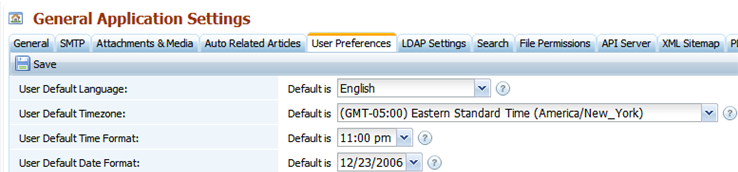
Users now have access to their profiles from the front-end. It allows them to change their account-related information, change password, language, time and date format, etc.

My Account at front-end

Ability to add/edit allowed mime-types

There is a setting for administrator that allows editing the list of allowed media file formats that can be uploaded via image, media, and flash manager by users. All files are checked by their mime-type that helps to avoid malicious scripts uploading.

Settings for media mime-types

RTL front-end templates (for Right-to-Left languages)

New version features option that enables right-to-left languages support in the front-end and in article editor.

Setting for RTL languages

RTL languages support can be enabled in one click now.

New theme for knowledge base

Additional front-end theme has been designed and included to the new version. You can use it as is or create your own theme based on it.

New additional theme for front-end

Remember sidebars’ states and sizes

Sidebars in KnowledgeBase Manager Pro have been resizable for a long time. With the new update when you resize a sidebar, its position is saved. This becomes extremely convenient when you travel between modules often - you do not need to resize sidebars width each time anymore if you for example stretched it in order to see your large category tree.

Resizable sidebars posibition memorizing

Expand/Collapse button for front-end tree and category selector combobox

It is easy to find a category or an article in a branchy tree since each tree has expand/collapse button for your convenience. You may notice this improvement in the category selector combobox and in the front-end category tree.

Expand/Collapse tree button

Bulk edit of permissions for categories

It is now possible to edit permissions for a group of selected categories at a time.

Bulk edit of permissions for categories

Animation preference for better performance

User interface animation can be turned off in the new version. This option greatly improves performance. Animation is disabled by default in this version.

Restricted groups column in articles grid

Articles grid now shows article access information. It is much easier to determine now if article can be publicly accessed or it is restricted to certain user groups. You can easily tell this by looking at the articles list and no longer need to open the article preferences for that.

Articles access column

Separate login message for users not assigned to any group

User that is not assigned to any category won’t be able to login. From now on when such user tries to login, he sees a notification message telling that he needs to be assigned to a group in order to login.

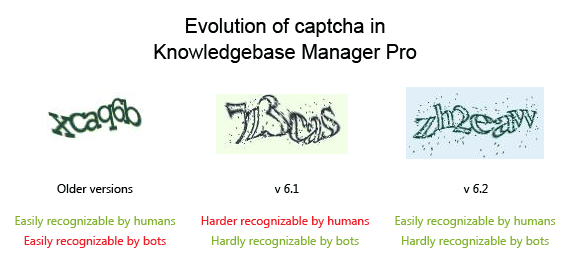
Anti-spam and anti-bot improvements: Captcha for negative rating and publications

We have added Captcha to negative rating form and to all forms in knowledge base publications. These measures improve anti-spam protection against automated form submissions by bots.

What’s New in Knowledge Base Manager Pro v5.1.1?

LDAP Integration

LDAP platforms supported by Knowledge Management System

This is the most important update in the new version. LDAP stands for Lightweight Directory Access Protocol, and allows usage of single user account directory to login to various applications. KnowledgeBase Manager Pro is one of these applications from this moment.

As well as integration, user account details can be synched and LDAP groups can be mapped with KnowledgeBase Manager Pro groups for role-based permissions.

LDAP Settings allowed in Knowledge Base Software

You can use existing LDAP server to manage user integration and authentication with following options:

  • Authorization
  • Group Mapping
  • Synchronization of User Details
  • User Group Assignment
  • And much more is available with LDAP support now.
Business Knowledge Management Software with support of LDAP and Active Directory

Supported LDAP platforms: Microsoft Active Directory, Novell, SMB/SAMBA, Posix, Posix Bis

TLS cryptographic protocol also supported and provides security and data integrity for communications with LDAP directory server.

Number of interface translations to different languages from the package

New version is shipped with a set of interface translations. We thank you customers for their contributions in translation of KnowledgeBase Manager Pro to various languages.

  • French French
  • Russian Russian
  • German German (front-end translation)
  • Italian Italian (front-end translation)
  • Polish Polish (front-end translation)

"Users" Tab in Group Add/Edit Window

This tab shows users assigned to current group, with ability to add and remove them. It became much easier to maintain knowledge base with large number of users. It is possible to search for a user by his account information and filter out user list.

Knowledge Management Tool Pickup Groups Window

"Member of" Tab in User Add/Edit Window

This tab shows groups current user assigned to, with ability to add and remove them. You have the complete picture what groups current user is member of. Search and filters can be applied to groups list.

Pickup Users Window for Wiki Software

User Picker/Auto Completer with optional combobox for lists with up to 25 user accounts

If you have no more than 25 user accounts in your knowledge base, you can just pick them up from the drop down menu that enumerates them. However if there are lots of users, you may find user picker with autocompleting option handy. You just need to start typing user login, first name, last name, email, or any other information from his profile, and voila – you see this user in the short list below. Single click – and you’ve added him to current group with no hassle.

Quick add fields with auto completer for:

Auto completer already works in WYSIWYG editor when you create links to other articles. Now it is also available in other places to provide maximum ease of use:

  • Quick adding of Related Articles
  • Quick adding of Users to User Groups
  • Quick adding of Groups to User
  • other places where it is useful
Auto Completer for related articles in KnowledgeBase Manager Pro

Main menu trigger preference for back-end users

Main menu items open on hovering of your mouse in previous KnowledgeBase Manager Pro versions. However you might find it inconvenient when menu opens every time you move your mouse over it without intention. That’s why this behavior is now can be changed by option in user settings. You may set menu items to open on click only.

Installation Wizard improvements and more comments added

Installation has become more comprehensive. More Installation Wizard instructions have been added to provide maximum ease of use. There is a reference to online installation manual within our knowledge base running under KnowledgeBase Manager Pro. It includes all possible issues you may face during installation because of unusual server settings. Links to the knowledge base articles next to installation errors have appeared for quick problem resolutions. More detailed information on system requirements is provided now. Some specific server settings experienced by our clients were resolved on software side so installation process on servers with specific settings have become smooth, predictable, and doesn’t require additional intervention.

Ability to view Update Log added on the final step of update process

It is possible now to view full update log after update to the latest version.

Current theme loading added by default in Manage Templates module

When you go to the Manage Templates module, you do not need to search which theme is set in the front-end knowledge base currently. It gets opened automatically and it is also marked out within the themes list.

Minimal width set for left category tree in the first theme

Minimal width for left category tree in the first front-end theme helps to keep your categories and articles names nicely typed without unwanted line breaks.

Captcha for "Ask a Question" and "Negative Rating" forms

Now every publicly available form in the knowledge base has maximum protection against spam bots and automated submissions.

What’s New in Knowledge Base Manager Pro v5.1?

More functions for WYSIWYG article editing

Previous version of Knowledge Base Manager Pro includes basic WYSIWYG editor tools like changing text alignment and font emphasis. In the 5.1 version we expanded the number of supported features with following:

  • Changing of font face, type, and size
  • Font styles
  • Changing of text color and highlighting color
  • Clearing of text formatting
  • Headings H1-H6
  • Numbered lists
  • Bulleted lists
  • Links (URLs)
  • Links to articles

    It is easy to add a link to another article now. When you start typing the article name, list of suggested article titles appears. You can continue typing to narrow suggested list, or click on sought-for article to create a link.

    Link to Article

    Article picker is also available. You may use it to find article quicker if you know exact article location, or need to apply filters to search an article by certain parameters.

    Article Picker

  • Email links

    Email links allow creation of links that open email message creation window on a click.

  • Anchors

    Use anchors to point on a specific section within the article.

  • Special characters inserting

    Use this feature to insert specific characters of European languages with diacritical signs like Ê or Ü, or special symbols like © or £.

  • Find & Replace

    Use it when you need to search for some string or replace some repetitive string while article editing.

  • Tables (advanced module)

    Advanced table creation module allows creation of tables with given colors of background and border, border width, number of rows and columns, alignment, cell spacing and cell padding.

    You can set horizontal and vertical alignment, height, and background color to a single cell, row, odd rows, even rows, or to all rows.

    Insert/Edit Table Dialog

    When you click on a table, 24 buttons appear on the toolbar for your convenience. You can quickly add or remove a row or a column, change cell alignment, and access cell or row properties window with their help.

    Table Edit Buttons

Inserting and storage of media content within articles

Media gallery allows storage of images, video, and flash within knowledge base and easy inserting of these objects directly to an article.

Image Manager

You can upload an image from your PC.

Upload image

Or even multiple images at a time.

Upload multiple images

It is also possible to get image from other website by URL.

Get Image by URL

You can set special attributes for inserted object of each media type.

Flash Object Properties

Publishing of certain category with or without subcategories

Additionally to existing three publication profiles: Full knowledge base publishing, Single article publishing, and Auto related widget, we also added category publication.

You can now divide your knowledge base into several categories with different level of user access, and open for public access unrestricted categories only. On the other hand, it is possible to have several knowledge bases on different subject fields within one Knowledge Base Manager Pro installation and publish them on your websites separately using this feature.

Custom fields for articles

Custom fields are user-defined variables that can be assigned to articles. Custom fields provide additional level of organization and filtration of articles in your corporate knowledge base. They allow greater customizability of types of data collected with the knowledge base entry.

  • Search within fields

    Custom fields’ vital property is that they are searchable. When you search for an article you may want to provide additional details about which articles are you interested in: articles that are applied to 2.3 version of software, or articles that contain solutions for Windows or OSX, for example.

  • Required custom fields are supported

    Custom field can be set to be required so that each article must have some value filled for this field.

  • Public and internal custom fields

    Some custom fields may be viewed by your staff only if you don’t want to show them to public users.

  • Custom field types available:

    • Text field – basic single line text box custom field to allow simple text input.
    • Text area – a multiline text area custom field to allow input of longer text strings.
    • Multi select – multiple values in a select list.
    • Multi checkboxes – multiple values using checkboxes.
    • Radio buttons – a group of radio buttons.
    • Select list – single selection list with a configurable set of options.
    • Combobox field – single selection from values in combobox.
    • Number field – a custom field that stores and validates numeric (floating point) input.
    • Email field – a custom field with email validation.
    • URL link field – allows links to other site to be added to an article.
    • Date picker – a custom field that stores dates and uses a date picker to input them.
    • Date time – a custom field that stores date and time values.

It is easy to add any custom field using step-by-step wizard. On the first step you choose the custom field type:

Custom Fields

On the second step you can change a wide variety of options for the custom field that you create.

Custom Fields

With the help of custom fields in Knowledge Base Manager Pro you can:

  • create articles for an FAQ applied to different versions of software that you describe
  • separate bug tracking issues between different platforms (OS, browsers, etc)
  • provide documents in different languages
  • show multiple article authors
  • add tags to articles
  • there are variety of other ways to use custom fields within your organization

Custom fields in front-end

New front-end style with category tree

With the new version we have created new front-end style with dynamic menus and category tree. It utilizes space more efficiently and provides convenient navigation.

Main page with category tree

It is simple to look through several articles now, just click on the left category tree elements.

Article layout with category tree

Fully-customizable templates for each layout element

KnowledgeBase Manager Pro has about 13 page layouts like Article Page, Main Page, Glossary Page, 404 Error Page, etc. Each layout consists from blocks (Comments Block, Advanced Search Block, Glossary Block, Menu Block, etc; there are about 30 blocks) and each block contains snippets (usually little blocks or text string; there are more than 100 snippets) along with its own code and structure. Each element can be customized according to your web site design and style. For further customization you can edit well commented CSS code.

Extended permissions

KnowledgeBase Manager Pro supports flexible permissions scheme from the early versions. In the 5.1 version we have also added permissions for new features like custom fields and author statistics. Permissions for all functions and modules are presented in a table view now for your convenience.

Action Permissions

You can view the tree of categories to which user group has access when you edit its permissions.

Category Permissions

But if you have a lot of user groups and few categories, it might be convenient to setup permissions by editing category properties.

Changing Set of Groups Who Can Access This Category

When you save category properties after changing a list of groups that may write to this category, confirmation message appears and asks if you want to apply changes also to subcategories and articles.

Access Change Confirmation Window

This helps to change permissions quickly even if your knowledge base contains thousands of articles, hundreds of users, and dozens of categories.

Category and article access permissions for public area users with authorization support

New version allows logging in to the public area for knowledge base authors and administrators. They will be able to see the same content that they can see from the admin area but in more comfortable way. It becomes extremely convenient because you can close part of content to unauthorized users. This feature has two following sub-features.

User favorites

Logged in users can comment articles or add them to their favorites list.

User Favorites

General operations on data in public area

Authors can create and edit articles or categories right from the public area from now on.

Add an Article from the Front-End

It saves much time because most mistakes and typos are being found while reading.

There is also an option for disabling front-end authorization. It is extremely useful if you already have authorization in your website and don’t want to confuse your customers. However, if you’re logged in to the back-end, you will be logged in in the front-end as well. So when you disable this option, you don’t lose any functionality.

Author statistics

New author statistics module represents

  • number of articles created by each user

    Author Statistics
  • author popularity table shows number of posted articles and average rating of his articles, where it is easy to see whose articles are more popular

  • general author statistics

Drafts and autosaving for articles

New autosaving feature is vital for interruptible Internet connections and unstable browsers. It prevents you from redundant work in case if you’ve already created a huge article with rich formatting and numerous images, and your browser window just collapses burying hours of your work because you’ve forgotten to save it.

From now on you just do your work and if something bad happens, you just need to open autosaved article and continue.

This feature also includes following sub-features:

  • Autosave interval can be set – how often the article is autosaved.

  • Ability to save article as draft for further editing – you may not save fresh changes to article if you didn’t finished, but just save draft instead and continue later.

  • Article cross-editing notifications - if somebody edits an article, this article becomes locked and other users receive appropriate notification.

  • Notification for article that already has a draft version – if you open an article that has a draft you’ll be prompted to continue editing.

  • Drafts tab on dashboard – the dashboard has a list of drafts created by you, so that you can quickly access them.

Search engine and user friendly links

From now on each article and category URL includes its title becoming readable by users and helping search engines to index them in SEO friendly way.

Featured articles

To attract user attention to some most valuable articles, you may set them as “featured”. These articles are shown at the top of articles list and are marked with a star.

Featured articles

Featured articles are also shown in the backend and it is easy toggle the “featured” status of each article from there.

Featured articles setting up

Improved navigation and tips in control panel

We made Knowledge Base Manager Pro intuitive and user-friendly, but any new feature tries to make it more complicated. That’s why we revised main menu navigation and added optional tips for each menu item and each section with enough information to find sought-for function.

Main Menu With Tips

It is possible now to add an article, category, user, or user group from any place with just one click in main menu.

Add Article Button

Tooltips are enabled by default, but you may turn them off when became familiar enough with the application.

Main Menu Without Tips

Glossary

Glossary of terms has been added to Knowledge Base Manager Pro from the early versions. You added words and explanations to application and users saw such word decorated with dotted underline, and saw explanation by pointing mouse to this term or phrase.

Terms

However our customers inquired us frequently about making of a glossary with these words and we have included this feature too.

You can browse the glossary page-by-page or use search function to find some special term. You can search either by term name, or by words from description, or even by both parameters.

Glossary

Negative article ratings

This feature was also present in previous versions. When user sets negative rating to an article, he had to explain why he is doing that and how article can be improved. These feedbacks were sent by email to the author so that he has been able to make use of them.

In the new 5.1 version of Knowledge Base Manager Pro we added a specific section where all negative articles are listed. Moreover, each negative feedback is attached to an article from now on, so any author seeing an article with negative feedback can improve it.

Article Preview action

We have added “Preview” action to the articles list, article view, and article edit windows for your convenience. When you click on this button, new browser window opens showing the article in the front-end, thus you can immediately see how it looks there.

Sidebars folding

Now you can hide sidebars in back-end in one click when not required in order to get more workspace. It is extremely useful for small displays of netbooks and subnotebooks.

Folded and unfolded sidebar

This is an improvement of previous feature that allowes changing of sidebar width by border drag-n-drop.

Article edits locking

There is a classic problem for a multiuser system as interceding update problem. That’s when several users want to update single data unit simultaneously. This problem was solved in Knowledge Base Manager Pro by article locking. When an article is being opened by one user, it becomes locked and nobody else can open it to edit for some predefined by special setting time.

Locked article notification

Article will be unlocked immediately if user closes editing window, or if some amount of time was passed from last saving (this setting is called “Article Unlock Timeout” and can be customized in application preferences). This article unlock timeout helps to avoid scenario of permanent article locking when user opens article for editing and then closes browser window.

Additional article batch operations

We added new group operations for article editing:

  • Publication Date - you can set when given group of articles will be published to become visible at the front-end.
  • Expiration Date - opposite action, it makes articles invisible at the front-end from a specified date.
  • Featured - this action pins articles to the top of respective categories showing that these are special in some way. These articles are shown with medal icon.
  • Add to My Favorites - adds articles to current user favorites list.
  • Groups - most valuable addition, it allows bulk change of article access permissions.

Article batch operations

New user preferences

New version features a number of new user preferences:

  • Context navigation - navigate to respective section after new item creation. E.g.: after creation of an article - go to Articles & Categories section. If unchecked - stay in current section.
  • Main menu tips - show detailed description for each main menu item if checked.
  • Module tips - show related help information for each application module if checked.
  • Set column minimal width - change the minimal column width to automatically fit the column header.
  • Open articles in maximized window - open Edit Article and View Article windows maximized. If disabled, articles are shown in windows of standard size.
  • Open compare articles in maximized window - open article versions comparison window maximized. If disabled, article comparison is shown in windows of standard size.
  • System info - show the “System Info” block on Dashboard
  • Updates -show the “Updates” block on Dashboard
  • News - show the “News” block on Dashboard

These preferences may have default values set up by administrator globally. Administrator can also hide them from users.

Icons for some grid headers

Some column titles received icons instead of titles in order to save some space. Column names can be also seen in tooltips.

Column title icons

New settings for Local Knowledgebase

Local Knowledgebase received a lot of new options and preferences.

There is a new setting - Access Mode. It defines if knowledge base content is available for users who do not have accounts. There are three different access modes:

  • Anonymous - unauthorized users can see published unrestricted content.
  • Headers and structure only - unauthorized users can see category structure and article headers. When they click on an article header to see article contents, authorization form will be shown to them.
  • Authorization Required - unauthorized users can’t see any content without logging in. Only authorization form is shown until logon.

There are also numerous new settings for knowledge base layout and functionality:

  • Ask a Question button show/hide option.
  • Quick Jump menu show/hide option.
  • Article URL format - SEO- and user-friendly URL may include category path and article title, or article title only.
  • Custom extension for article URLs.
  • Meta Keywords and Description for home page.
  • Custom logo for public knowledge base header can be uploaded by user.
  • Customizable number of articles in Recently Added, Most Popular, Featured, and Top Rated article boxes.
  • Recently Added, Most Popular, Featured, and Top Rated article boxes can be shown or hidden independently.
  • Article sorting options (ascending/descending by title, popularity, rating, update and creation date).
  • Numerous customization options for new page layouts: My Favorites and Glossary.
  • Search options and options for search page layout.
  • Setting that allows sending of the Ask a Question form submissions to custom email address. Saving of these submissions within Knowledge Base Manager Pro can be disabled.

Local Knowledgebase also received a separate module for all settings configuration.

The option for disabling authorization at the front-end was added recently. It is extremely useful if you already have authorization in your website and don’t want to confuse your customers.

We also added the setting that allows sending of the Ask a Question form submissions to custom email address. Saving of these submissions within Knowledge Base Manager Pro can be disabled. If you’re using a ticket system for customer support, this setting can be a pipe between knowledge base and ticket system, thus creating a good symbiosis.

Bookmark and Share
Knowledgebase Manager Pro
Money Back Guarantee
 
Welcome to Web-Site-Scripts.com 0 items in your cart | Total $0.00
Made by professionals, affordable to everyone!
USA Call Us: 1-877-744-1221 Canada
Home  :  Contact  :  Sitemap