Spell checking function is available in all popular modern browsers. Built-in spell checkers of Firefox, Chrome, Safari, Opera, and Internet Explorer 10 work great with
KMP. Spell checking is enabled by default in these browsers.
All spell checkers in common browsers work in similar way. If spell checker thinks that you've misspelled, it underlines misspelled word with a red line (solid, wavy, or dotted). When you right-click on that word, you may see some suggestions in popup menu.
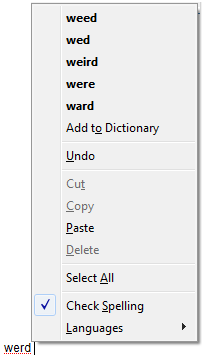
Usually you can teach the spell checker a new word by clicking "Add to Dictionary".
If your browser doesn't seem to check spelling, see the instructions below.
Please note that some spell checkers work with text areas only (text fields with multiple rows) so single-row text fields may not be spell checked.
Internet Explorer
Internet Explorer received a spell checker in version 10. If spell-checker doesn't seem to work, make sure that you've got the 10 version or higher. You can do that by selecting Help > About Internet Explorer menu.
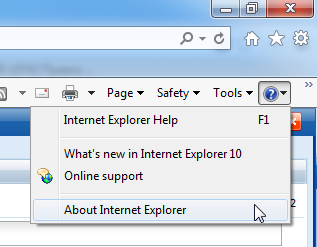
It will open a window which shows the current IE version, e.g.:
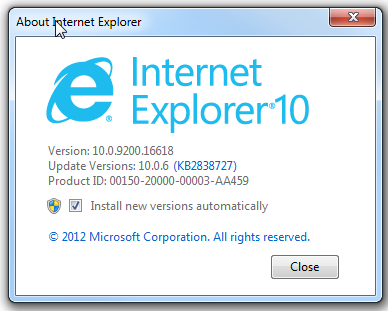
If you've got version 10 or higher, but spellchecking still doesn't work, check the spellchecker settings.
For that go to Tools > Manage Add-ons and click on Spelling Correction. Make sure that your language is selected as default there and that "Enable spelling correction" option is enabled.
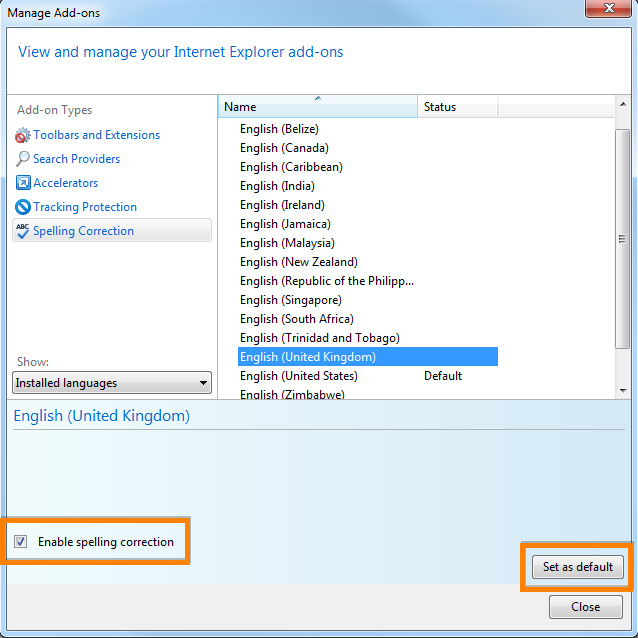
You can now use the spell checker function.
Firefox
If spell checker doesn't seem to work in your Firefox, right-click on text area (multi-line text field) and check if "Check Spelling" option is enabled.
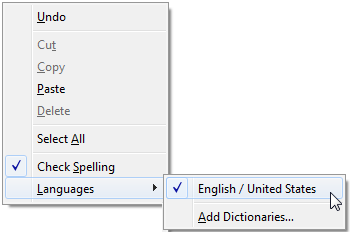
Check also if spelling language matches your language. You can search and load more languages by clicking "Add Dictonaries...".
Safari
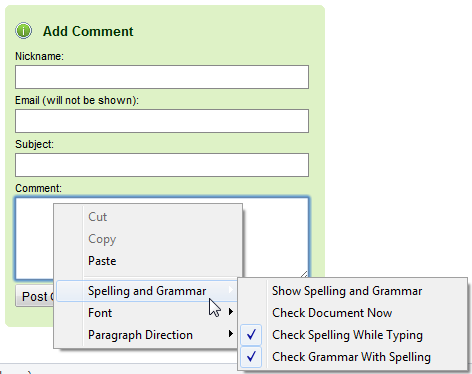
You can enable spelling or/and grammar checker by right-clicking on a text area (multi-line text field) and selection "Check Spelling While Typing" or/and "Check Grammar With Spelling".
Chrome
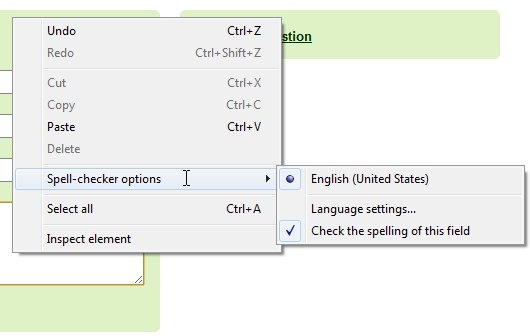
If Chrome doesn't seem to check spelling, right-click on a text area (multi-line text field) and check if "Check the spelling of this field" is enabled.
If some spell checker options are diabled like it is shown on the next screenshot, it means that spell-checking is disabled. Click the "Language settings...".
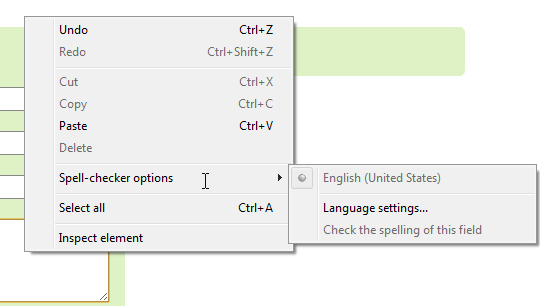
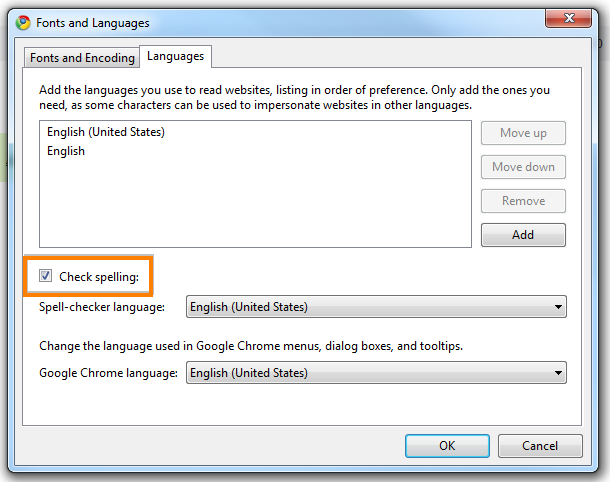
I'll see the spelling configuration window. Set checkbox on "Check spelling" and click OK. You can also select language for spell checker.
Opera
If Opera doesn't seem to check spelling, right-click on a text area (multi-line text field) and check if "Check spelling" is enabled.
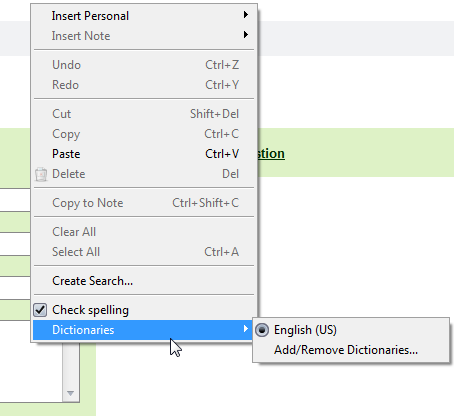
You can also add more spell check dictonaries in "Add/Remove Dictonaries" menu.



